
How to Reboot Chromecast ? Quick & Easy Guide 2026
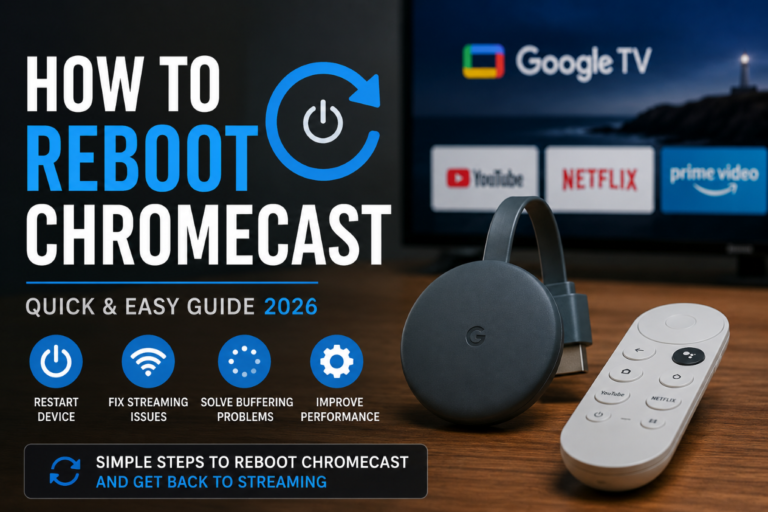
If your Chromecast is freezing, buffering, disconnecting from Wi-Fi, or simply not responding as expected, learning how to reboot Chromecast can often solve the problem in just a few minutes. Many users experience occasional streaming issues while watching movies, live television, sports, or online content, and a simple reboot is often the fastest solution.
Understanding how to reboot Chromecast is important because the device continuously communicates with your television, router, and streaming applications. Over time, temporary software glitches, network conflicts, and cached data can affect performance. Fortunately, most Chromecast problems can be fixed without advanced technical knowledge.
Many users who rely on streaming devices for daily entertainment also explore IPTV Canada solutions to improve their overall streaming experience across multiple devices and platforms.
Why You May Need to Reboot Chromecast
There are several situations where learning how to reboot Chromecast becomes useful. Even though Chromecast devices are generally reliable, occasional issues can occur due to network interruptions, software updates, or temporary hardware conflicts.
Common reasons to reboot Chromecast include:
- Streaming applications freezing
- Video buffering problems
- Wi-Fi connection issues
- Chromecast not appearing on devices
- Delayed casting response
- Audio synchronization problems
- Slow performance
- Device overheating
A reboot clears temporary processes running in memory and allows Chromecast to reconnect properly to your network.
What Happens When You Reboot Chromecast?
Many users worry that rebooting Chromecast may delete settings or remove installed applications. Fortunately, a reboot is different from a factory reset.
When you reboot Chromecast:
- Temporary processes restart
- Network connections refresh
- Streaming performance may improve
- Cached data is cleared from memory
A reboot does not:
- Delete accounts
- Remove settings
- Erase Wi-Fi information
- Reset the device completely
Because of this, rebooting should always be your first troubleshooting step before considering more advanced solutions.
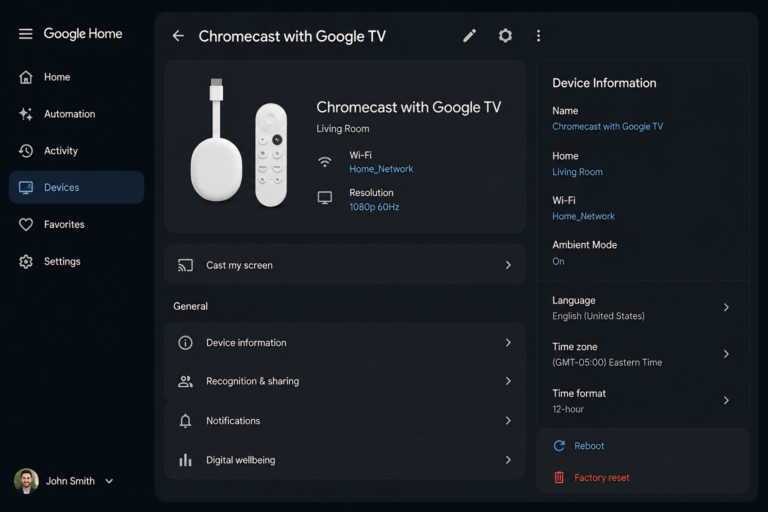
How to Reboot Chromecast Using Google Home
One of the easiest methods is through the Google Home application.
Follow these steps:
- Open the Google Home app.
- Select your Chromecast device.
- Tap the Settings icon.
- Open Device Information.
- Tap the three-dot menu.
- Select Reboot.
- Confirm the action.
The device will restart automatically and reconnect to your network after a few moments.
This method is generally recommended because it allows Chromecast to perform a controlled restart without disconnecting power.
How to Reboot Chromecast Manually
If you cannot access the Google Home application, you can manually reboot Chromecast.
To do this:
- Disconnect the Chromecast power cable.
- Wait approximately 30 seconds.
- Reconnect the power cable.
- Allow the device to start normally.
This method performs a complete power cycle and often resolves connection problems quickly.
How to Reboot Chromecast with Google TV
Users with Chromecast with Google TV have additional options available directly through the interface.
Steps:
- Open Settings.
- Select System.
- Choose Restart.
- Confirm the restart process.
The device will reboot and automatically reload the operating system.
This method is especially useful when troubleshooting application crashes or navigation issues.
Common Chromecast Problems Fixed by Rebooting
A simple reboot can resolve many common issues that affect daily streaming performance.
Examples include:
Chromecast Not Connecting to Wi-Fi
Network interruptions can prevent Chromecast from maintaining a stable connection. Restarting the device often refreshes communication with the router.
Streaming Buffering Issues
Buffering may result from temporary software conflicts. Rebooting Chromecast clears active processes and can improve playback stability.
Apps Not Casting Correctly
Sometimes streaming applications fail to communicate properly with Chromecast. Restarting both the application and Chromecast usually restores functionality.
Chromecast Not Appearing in Google Home
Device discovery issues can occasionally occur after network changes. A reboot often allows Chromecast to become visible again.
How Often Should You Reboot Chromecast?
There is no strict schedule, but occasional reboots can help maintain performance.
Many users reboot Chromecast:
- After software updates
- When switching networks
- When troubleshooting issues
- Once every few weeks as maintenance
Regular restarts help refresh system resources and maintain stable operation.
Advanced Chromecast Troubleshooting
If rebooting Chromecast does not solve the problem, additional troubleshooting may be required.
Potential solutions include:
- Restarting your router
- Updating Google Home
- Updating Chromecast firmware
- Checking Wi-Fi signal strength
- Moving Chromecast closer to the router
- Reducing network congestion
- Reinstalling problematic applications
In most situations, combining a Chromecast reboot with a router restart resolves persistent connectivity problems.
Many streaming enthusiasts who use Chromecast alongside streaming services also consult the IPTV Canada Guide to optimize device compatibility and improve their viewing experience.
How to Reboot Chromecast When It Freezes
One of the most common reasons users search for how to reboot Chromecast is because their device suddenly freezes while streaming content. A frozen screen can occur because of temporary software issues, application conflicts, or network interruptions.
Learning how to reboot Chromecast properly can often resolve these issues without requiring a factory reset. In many cases, simply restarting the device through the Google Home application or disconnecting the power source for a short period restores normal operation.
If your Chromecast freezes frequently, understanding how to reboot Chromecast can help reduce downtime and improve your overall streaming experience.
How to Reboot Chromecast to Fix Buffering Problems
Buffering is another reason many users want to know how to reboot Chromecast. While internet speed often plays a role, temporary software conflicts can also affect streaming performance.
Knowing how to reboot Chromecast allows the device to refresh network connections and clear temporary memory usage. Many users notice smoother playback immediately after performing a reboot.
Before attempting more advanced troubleshooting methods, it is usually recommended to learn how to reboot Chromecast and test the streaming performance again.
How to Reboot Chromecast Safely
Many first-time users wonder whether learning how to reboot Chromecast could affect their settings or personal data. Fortunately, rebooting is a safe process that simply restarts the device.
Understanding how to reboot Chromecast correctly ensures that your device can recover from minor software issues while keeping your accounts, preferences, and Wi-Fi settings intact.
Because rebooting is safe and easy, experts often recommend trying how to reboot Chromecast procedures before considering factory resets or other advanced troubleshooting techniques
Final Thoughts
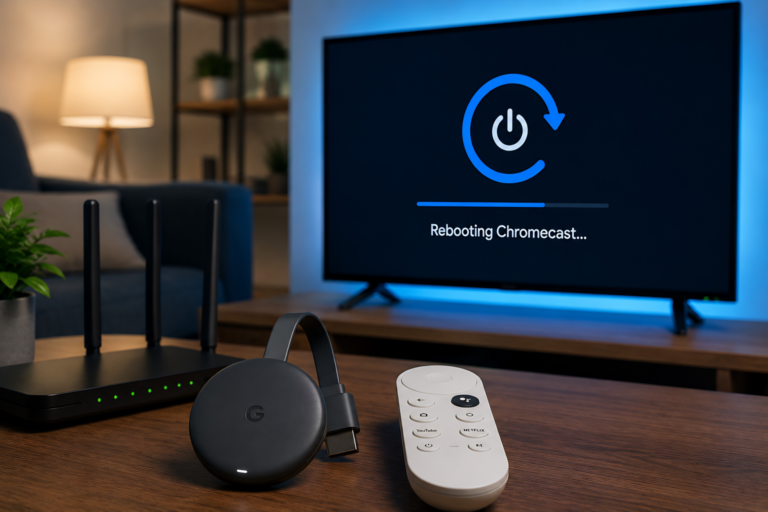
Learning how to reboot Chromecast is one of the simplest and most effective troubleshooting skills for any streaming user. Whether you’re experiencing buffering, connectivity problems, application crashes, or general performance issues, a quick reboot can often restore normal functionality within minutes.
While Chromecast is designed to operate continuously, occasional restarts help maintain performance and ensure smooth communication with streaming applications and network devices. For most users, rebooting should always be the first troubleshooting step before attempting more advanced solutions.
Viewers looking to improve their overall streaming setup often compare devices, services, and a reliable IPTV Provider to achieve a smoother entertainment experience across multiple screens.
FAQ
How do I reboot Chromecast?
You can reboot Chromecast through the Google Home application or by disconnecting and reconnecting the power cable.
Will rebooting Chromecast delete my settings?
No. Rebooting only restarts the device and does not erase settings or accounts.
How long does Chromecast take to reboot?
Most Chromecast devices restart within one to two minutes.
Does rebooting Chromecast improve streaming quality?
It can help resolve temporary software and network issues that affect streaming performance.
What is the difference between rebooting and factory resetting Chromecast?
Rebooting restarts the device, while a factory reset erases all settings and returns Chromecast to its original state.
Why does Chromecast keep disconnecting?
Network instability, router issues, outdated software, or signal interference may cause frequent disconnections.
Should I reboot my router too?
Yes. Restarting both Chromecast and your router often resolves connectivity problems more effectively.
Is rebooting Chromecast safe?
Yes. Rebooting is completely safe and is one of the most common troubleshooting methods recommended for Chromecast devices.